
Blogs & Guides
WHAG History: Local Radio to DC News Now

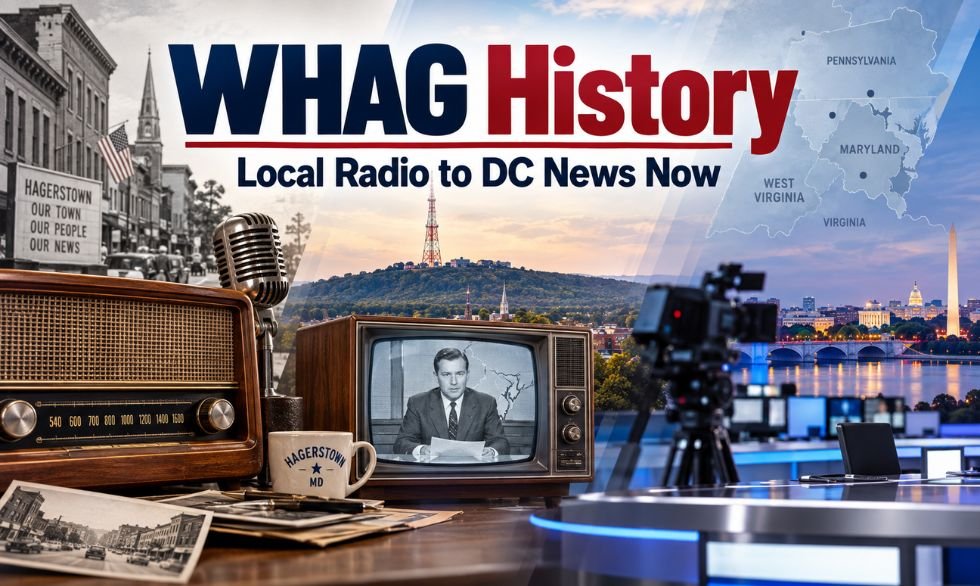
WHAG has been part of Hagerstown, Maryland, media for more than 60 years. The name first appeared on local radio in the 1960s. It later became better known through Channel 25, a local TV station that served people across several states.
The story covers more than one station. The name grew from AM radio into FM radio and TV. Years later, the TV station changed its name to WDVM-TV and became part of DC News Now.
This article looks at how the story began. It covers the first radio plans, the people behind the stations, the move into FM and TV, and the early problems that shaped Channel 25.
Quick Facts
| Fact | Details |
|---|---|
| Main Topic | WHAG broadcast history |
| Location | Hagerstown, Maryland |
| First Main Use | AM radio |
| AM Frequency | 1410 kHz |
| AM Launch | June 1962 |
| Early Key Figure | John L. Miller Sr. |
| Early Company | Regional Broadcasting Co. |
| Important Broadcaster | Warren Adler |
| FM Station | WHAG-FM |
| FM Frequency | 96.7 FM |
| FM Launch | 1965 |
| TV Station | WHAG-TV |
| TV Channel | Channel 25 |
| TV Launch | January 3, 1970 |
| Main TV Network | NBC |
| TV Service Area | Maryland, Pennsylvania, West Virginia, and Virginia |
| News Brand | Your 4-State News |
| TV Transmitter Area | Fairview Mountain near Clear Spring, Maryland |
| Nexstar Purchase | 2003 |
| NBC Affiliation Ended | 2016 |
| New TV Call Sign | WDVM-TV |
| Rebrand Date | July 1, 2017 |
| Later News Brand | DC News Now |
| DC News Now Change | 2022 |
| WHAG Name Today | Still used by the AM radio station |
| Current Radio Format | Oldies, based on the supplied material |
What Is WHAG?
WHAG is a broadcast call sign linked with Hagerstown, Maryland. The name has been used by both radio and TV stations in the area. Many local people knew it through news, music, weather, and other programs.
The first station was an AM radio station on 1410 kHz. The name later spread to FM radio and television. Channel 25 became the best-known use of the call sign after it started in 1970.
Main parts of the name’s history
- AM radio began in 1962.
- FM radio followed in 1965.
- Channel 25 started in 1970.
- The TV station became WDVM-TV in 2017.
- It later became part of DC News Now.
The radio name still exists today. The old TV station no longer uses it. This can seem confusing, but the story is easy to follow when we start at the beginning.
WHAG History Begins With Local Radio
The story began in the early 1960s. Radio pioneer John L. Miller Sr. wanted to open another station in Hagerstown. But more than one group wanted the same 1410 AM frequency.
That could have caused a long fight with the Federal Communications Commission, or FCC. Instead, the groups joined together. They formed Regional Broadcasting Co. and moved ahead with one shared plan.
This choice helped the station get on the air. It also gave Hagerstown another local radio voice. That small start later led to much bigger plans in FM radio and television.
How WHAG-AM Got on the Air
The AM station began broadcasting in June 1962 on 1410 kHz. The source material gives two different launch dates: June 2 and June 9. So the exact day should be checked before it is used as a final fact.
What is clear is that the station became the base of a growing local media business. John L. Miller Sr. was part of the early story. Regional Broadcasting Co. gave the station the business setup it needed to begin.
The station was small when compared with large broadcasters in Washington, D.C. But local radio had a clear role. It could focus on nearby news, events, music, and daily life in Hagerstown.
That local focus gave the station room to grow. Soon, its owners began looking beyond AM radio.
WHAG Grows With FM Radio
The next major step came in 1965. An FM station began broadcasting on 96.7. This gave the group another way to reach listeners in the area.
Warren Adler became an important name during this time. He was a public relations worker from Washington, D.C. He became involved with the stations and helped grow the business.
The group expanded in three steps
- AM radio came first.
- FM radio followed in 1965.
- Television arrived in 1970.
The FM station used the related call letters for several years. It stopped using them in 1974. The station later went through more name and format changes and eventually became known as WDLD.
This growth happened in less than ten years. What began as one local AM station had become a larger radio group. Television was the next step.
WHAG-TV Launches on Channel 25
Channel 25 began broadcasting in Hagerstown on January 3, 1970. It became an NBC affiliate. The station showed NBC programs while also giving viewers local news and regional reports.
Television gave the name a much larger role. Radio could offer music, talk, and updates. TV added pictures, weather maps, live reports, and local news anchors.
Hagerstown was part of the wider Washington, D.C. TV market. But the area had a problem. Mountains and distance could make signals from large D.C. stations hard to receive in some parts of Western Maryland.
A local Channel 25 helped fill that gap. It could give nearby viewers stronger access to network shows, local news, and weather.
Warren Adler later left broadcasting and became a full-time writer. He became known for writing The War of the Roses. The TV station he helped launch continued to grow after he left.
Why WHAG-TV Needed Fairview Mountain?
Starting a TV station needed more than a studio and cameras. The station also needed a strong transmitter. That transmitter had to send a clear signal across a wide area.
The first plan was to place the transmitter on top of the Hagerstown Motor Inn, also known as the Alexander House. Engineers found that the building could not safely hold the heavy equipment.
The station then moved the transmitter site to Fairview Mountain near Clear Spring, Maryland.
Why Fairview Mountain helped?
- It gave the transmitter more height.
- It helped the signal move past hills and ridges.
- It improved coverage outside Hagerstown.
- It helped reach viewers in nearby states.
The higher site became an important part of Channel 25’s growth. The signal could reach beyond Hagerstown into parts of Maryland, Pennsylvania, West Virginia, and Virginia.
That wide reach later became a major part of the station’s image. It helped build its close link with the Four-State Area.
WHAG and the Four-State Area
The station’s wide signal became one of its biggest strengths. Hagerstown sits close to several state lines. This gave Channel 25 a chance to serve people far beyond one city.
Its coverage reached parts of Maryland, Pennsylvania, West Virginia, and Virginia. The station used this reach to build its well-known “Your 4-State News” name.
Areas served by the station
- Western Maryland
- South-central Pennsylvania
- Eastern West Virginia
- Northern Virginia
This local focus helped the station stand out. A viewer in a small town could see news from nearby roads, schools, towns, and counties. That made the station feel closer to daily life.
The station also kept news teams in different areas. This helped reporters cover local stories across state lines. Over time, the Four-State image became a key part of the station’s name and history.
WHAG-TV as a Local NBC Station
Channel 25 spent many years as an NBC station. This gave viewers access to national NBC shows while still keeping a strong local news service.
The station filled an important gap in the region. Hagerstown was part of the Washington, D.C. TV market. But hills and mountains could make some D.C. signals harder to receive in western areas.
For many local homes, Channel 25 offered a more direct source of TV news and weather. It could report on events that large D.C. stations might not cover in detail.
The station also built a strong local image over the years. Viewers came to know its news team, weather reports, and community coverage.
That local role became even more important when the TV business started to change.
WHAG Under Nexstar Media Group
Nexstar Media Group bought the television station in December 2003. The source material says the deal was worth $26 million.
Under Nexstar, the station kept its local news focus. It also began looking at a wider area around Washington, D.C. This slowly changed the station’s goals.
The station was no longer focused only on Hagerstown and nearby towns. It also wanted to reach more people in larger suburbs and busy travel areas.
The station’s focus started to grow
- More local news was added.
- Coverage moved closer to D.C. suburbs.
- New regional news areas became more important.
- The station began serving a much wider audience.
This growth later created a problem. The old call sign was strongly tied to Hagerstown. But the station was trying to become more regional.
That issue became much bigger after a major change in 2016.
Why WHAG-TV Lost NBC in 2016?
In 2016, NBC decided not to renew its long NBC deal with Channel 25. The station had been an NBC affiliate for about 46 years.
The main reason was the TV market setup. Hagerstown was part of the Washington, D.C. market. NBC already owned WRC-TV, Channel 4, in Washington. NBC chose to make that station its main regional source.
Losing NBC was a major change. A local station without a large network can lose popular shows and a steady flow of national programs.
But the station did not simply cut back.
Instead, Nexstar put more money into local news. The newsroom staff grew, and more local shows were added. The station also started new coverage aimed at places such as Northern Virginia and the I-270 area.
This move showed a clear plan. If the station could no longer depend on NBC, it would depend more on local news.
WHAG-TV Becomes WDVM-TV
The next big change came on July 1, 2017. The TV station stopped using its old call letters and became WDVM-TV.
The change made sense for its new plan. The station was now trying to serve more than Hagerstown. Its news area had grown into parts of Montgomery County and Northern Virginia.
The old name was closely linked with one city. A new name gave the station more room to build a wider regional image.
Why the name changed?
- The station covered a larger area.
- More D.C. suburbs were included.
- Local news became the main focus.
- The Hagerstown-based name felt too narrow.
The change ended a long chapter in local TV history. The old TV call sign was gone, but the station itself kept going.
WDVM-TV became the next step in the same broadcast story.
WHAG to DC News Now
WDVM-TV did not stay a stand-alone regional brand forever. Another major change came in 2022.
Nexstar brought WDVM-TV and Washington station WDCW closer together. Their news work was joined under a larger brand called DC News Now.
The main news work moved to a larger station site in Washington, D.C. This helped create one news service for a much wider region.
The change did not fully remove Hagerstown from the story. Local reporters still covered Washington County and nearby areas.
So the path became easy to follow:
- Local radio came first.
- Channel 25 followed in 1970.
- WDVM-TV arrived in 2017.
- DC News Now followed in 2022.
The names changed, but local news stayed at the center of the station’s work.
Where WHAG Stands Today?
As of 2026, the original radio call sign still has a place in the Hagerstown area. The AM station on 1410 remains the part of the broadcast family that still uses the old letters.
The source material says the station is owned by Connoisseur Media. It carries an oldies format and simulcasts WCHA from Chambersburg, Pennsylvania.
The television side is very different today. The old Channel 25 name was dropped in 2017. The station later became part of DC News Now, which now serves a much larger regional audience.
This long history shows how local media can change with time. One small radio station grew into FM radio, television, regional news, and a larger D.C.-area news network.
FAQs
What is WHAG?
WHAG is a broadcast call sign linked with radio and TV stations in Hagerstown, Maryland.
When did WHAG radio begin?
The AM station began broadcasting on 1410 kHz in June 1962.
When did WHAG-TV start?
WHAG-TV began broadcasting on Channel 25 on January 3, 1970.
Why did WHAG-TV become WDVM-TV?
The station changed its name in 2017 as its news coverage expanded beyond Hagerstown into the wider Washington, D.C. region.
Is WHAG still used today?
Yes, the WHAG call sign is still used by the AM radio station, while the former TV station became part of DC News Now.
MORE INTERESTING: Is Voozon Worth Using? A Clear and Helpful Guide
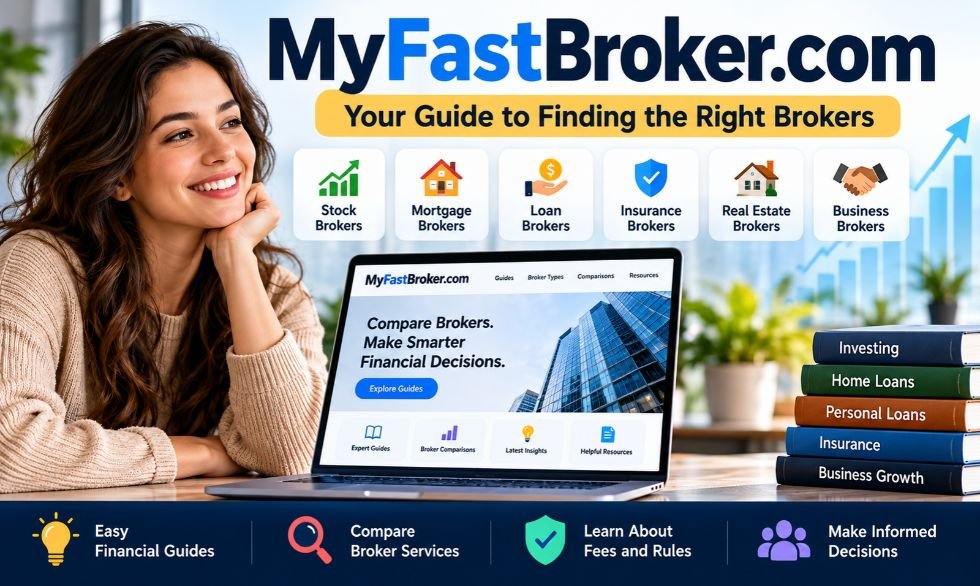
Choosing the right broker can be hard. Each company has different fees, services, and account rules. MyFastBroker.com helps people learn about brokers before making a choice. It covers stocks, loans, mortgages, insurance, real estate, and business services.
The website offers guides and broker comparisons. These help readers understand costs, services, and financial terms. However, it is not a trading platform and does not hold customer funds. This article covers its features, broker types, safety, reviews, benefits, risks, and alternatives in 2026.
What Is MyFastBroker.com?
MyFastBroker.com is a financial information and broker comparison website. It publishes guides about broker services, account rules, and fees. Its content helps investors, homebuyers, borrowers, and business owners learn about financial providers.
The website describes itself as an independent research source. It explains how brokers work and what customers should check before choosing one. Readers can learn about costs, service terms, and different broker types.
The website is not a licensed brokerage or trading service. Users cannot:
- Buy or sell stocks directly.
- Place forex or crypto trades.
- Open funded trading accounts.
- Deposit or withdraw investment money.
- Get personal financial, legal, or tax advice.
Its purpose is to provide general information rather than handle financial deals.
How Does MyFastBroker.com Work?
MyFastBroker.com groups its content into financial categories. Visitors choose a topic and read guides about the service they need. For example, investors can learn about stock brokers, while homebuyers can explore mortgage services.
The website says it uses public information to research brokers. This may include published fees, account rules, services, and other terms. It then uses these details to prepare guides and comparison articles.
Readers can use these articles to compare providers before contacting them. However, the website does not open accounts or arrange trades. Users must contact the actual broker to access financial services.
Types of Brokers Covered by MyFastBroker.com
MyFastBroker.com covers several broker types. Each one serves a different financial need. The website provides guides that explain their services, costs, and main duties.
The main broker categories include:
- Stock brokers: Help customers buy and sell stocks, funds, and other investments. Guides cover account types, fees, and trading services.
- Mortgage brokers: Help borrowers explore home loan options. Topics include interest rates, lender terms, and broker charges.
- Loan brokers: Help people find personal, auto, and business loans. Guides explain loan costs, repayment terms, and eligibility.
- Insurance brokers: Help customers compare policies. Content covers premiums, coverage limits, deductibles, and exclusions.
- Real estate brokers: Assist with buying and selling property. Topics include property prices, sales agreements, and service fees.
- Business brokers: Help owners buy or sell companies. Guides cover business value, sales terms, and broker charges.
The website also publishes content about forex trading and related financial topics. These articles explain currency markets, trading risks, and broker selection. They do not provide direct trading services.
Main Features
One main feature is its collection of financial guides. These articles explain common terms such as commissions, account minimums, loan rates, and insurance deductibles. They help beginners understand what these terms mean.
The website also publishes broker comparison articles. These discuss differences in fees, services, account needs, and rules. Readers can use them to learn what matters when comparing financial companies.
Other useful features include:
- Separate sections for different broker types.
- Beginner guides about financial services.
- Information about common costs and fees.
- Articles about broker selection.
- Public access to educational content.
- About Us, Contact, and policy pages.
The website does not provide live trading tools or investment account dashboards. Claims about built-in calculators should be checked before treating them as available features.
How MyFastBroker.com Compares Brokers
MyFastBroker.com says it uses public information to compare financial providers. Its research covers broker fees, account rules, services, and customer requirements. These details help readers understand the differences between companies.
Broker costs depend on the type of service. Stock brokers may charge trading or account fees. Mortgage brokers may receive payment from borrowers or lenders. Insurance brokers may earn commissions from policy sales.
The website says it follows similar research points when comparing providers in the same category. However, its full ranking process has not been independently checked. Readers should confirm important details through official broker websites and public records.
Is MyFastBroker.com a Trading Platform?
No. MyFastBroker.com is an information website, not a trading platform. It does not process stock, forex, or cryptocurrency trades. Visitors cannot deposit money or manage investment accounts through it.
Some third-party articles describe the website as a trading service. They mention fast trade execution, demo accounts, leverage, and low spreads. These claims do not match the site’s own description.
Trading systems such as MetaTrader 4, MetaTrader 5, and cTrader are separate services. Writing about these tools does not mean a website operates them. Anyone who wants to trade must use a suitable broker that offers trading accounts.
Is MyFastBroker.com Free to Use?
The public guides on MyFastBroker.com are free to read. Visitors can explore articles and broker information without opening a trading account. No confirmed monthly fee is listed for its normal educational content.
However, the brokers discussed on the website may charge their own fees. These depend on the financial service, company, and account type.
Common charges may include:
- Trading commissions.
- Account maintenance fees.
- Currency conversion charges.
- Loan setup fees.
- Interest payments.
- Insurance premiums.
- Property broker commissions.
- Withdrawal fees.
Readers should check the full cost with the actual provider. A low starting fee does not always mean the service is cheaper overall.
Is MyFastBroker.com Legit and Safe?
MyFastBroker.com presents itself as a financial education website. It publishes broker guides and explains its services through public pages. The website states that it does not hold customer funds or execute trades.
It also has an About Us page, contact details, and policy information. However, these pages do not prove that every comparison is correct. Its full ownership and research process have not been independently verified in the material reviewed.
Safety also depends on the broker a reader chooses. Before using a financial company, check its license with the right authority.
For example:
- FINRA BrokerCheck: Provides records about U.S. securities brokers and firms.
- Financial Conduct Authority (FCA): Helps users check regulated financial firms in the UK.
- Local regulators: Provide license information for services covered by their rules.
A broker’s license should match its legal name and the services it offers.
Reviews and User Feedback
Reviews of MyFastBroker.com give different descriptions of the website. Some call it a trading platform with fast execution and advanced tools. Others describe it as a financial information resource.
In August 2026, the website published statements about these conflicting descriptions. It explained that it does not offer trading accounts, accept deposits, or execute market orders.
A useful review should focus on real services and clear facts. Readers should check whether it includes:
- Correct information about the website.
- Details of its actual features.
- Clear explanations of costs.
- Recent publication dates.
- Evidence for customer complaints.
- Reliable sources for important claims.
No independently verified overall customer rating was established in the research reviewed. Star ratings without clear evidence should not be treated as facts.
Ownership and Related Websites
MyFastBroker.com publishes articles under author names, including Ronnie Hunt. It also provides contact information and explains its stated research approach. However, the published details do not fully confirm the legal ownership of the website.
Several similar domain names appear online. These include MyFastBroker.pro, MyFastBroker.net, and MyFastBroker.news. Similar names do not prove that the websites belong to the same company.
On August 28, 2026, the .com website published a statement about these domains. It said that it does not own or operate the .net and .news websites. Readers should check the exact website address before trusting contact details or sharing personal information.
Latest MyFastBroker.com Updates in 2026
MyFastBroker.com published several articles in 2026 about its services and research methods. On July 31, it discussed broker comparisons, financial research, and its stated editorial policies.
On August 27, the website published guides about different broker services. These covered stocks, mortgages, insurance, forex, loans, real estate, and business financing. The guides explained service types, fees, and points to check before choosing a provider.
On August 28, the website addressed confusion about its name and services. It clarified that it is not a live trading platform. It also published information about similar domain names and misleading third-party descriptions.
Benefits of Using It
One benefit is that the website covers several financial services. Readers can find guides about stocks, mortgages, insurance, loans, and property brokers in one place.
Its articles also explain basic financial terms. For example, readers can learn the difference between an account fee and a trading commission. This helps them understand what to check before choosing a provider.
Other benefits include:
- Free access to public guides.
- Information about different broker types.
- Simple explanations of common fees.
- Help with early broker research.
- Guides about account requirements.
- Articles that explain service terms.
The website may help users prepare questions before speaking with a broker. However, they should still verify important information with the actual company.
Limitations and Risks
MyFastBroker.com does not provide direct brokerage services. Users cannot place trades, manage investments, or withdraw money from trading accounts through the website.
Its content also provides general information rather than personal advice. For example, a mortgage guide cannot decide which loan is best for someone based on their income, credit history, and financial needs.
Other limitations include:
- Broker fees and rules may change.
- Some articles may become outdated.
- The full ranking process is not independently verified.
- Broker listings do not prove that companies are licensed.
- Similar domain names may confuse readers.
- The website cannot manage complaints about outside broker accounts.
Readers should use more than one source when researching financial providers.
How to Use MyFastBroker.com Safely?
Start by visiting the correct website. Choose the broker category that matches your needs. Read the guides to understand basic terms, service types, and common costs.
Next, compare different providers. Write down their legal names, fees, services, and account rules. Visit their official websites to check whether the information is current.
Before using a broker, follow these steps:
- Check its legal business name.
- Find its license or registration details.
- Verify the license through the proper regulator.
- Review fees and payment terms.
- Read account and withdrawal rules.
- Check customer support information.
- Look for reliable complaint records.
- Avoid sending money to unknown websites.
Do not assume that a company is safe because it appears in a comparison article. Always check its details before opening an account or making a payment.
MyFastBroker.com vs Other Broker Websites
MyFastBroker.com focuses on financial education and broker comparisons. Other websites provide similar research services. NerdWallet covers personal finance topics, while StockBrokers.com focuses on online brokerage reviews and testing.
These websites differ from actual brokerage companies. Fidelity Investments, Charles Schwab, and Interactive Brokers provide investment accounts and trading services to eligible customers.
The main differences are shown below:
| Website or Platform | Main Purpose | Direct Trading |
|---|---|---|
| MyFastBroker.com | Financial guides and broker research | No |
| NerdWallet | Personal finance guides and comparisons | No |
| StockBrokers.com | Online broker reviews and testing | No |
| Fidelity Investments | Investing and brokerage accounts | Yes |
| Charles Schwab | Brokerage and investment services | Yes |
| Interactive Brokers | Trading across financial markets | Yes |
| FINRA BrokerCheck | Broker registration and background records | No |
Official regulators serve a different purpose from review websites. They provide records about licenses, permissions, and other regulatory matters. Readers should use these records to check a broker’s legal status.
Who Should Use MyFastBroker.com?
MyFastBroker.com may help beginners who want to understand brokers before using their services. New investors can learn about stock brokers, trading fees, account rules, and basic investment terms.
Homebuyers can explore mortgage guides to understand lender choices and loan costs. Borrowers can read about personal and business loans. People looking for insurance or real estate services can learn how brokers work in those fields.
The website may also help business owners research financing and business sales. However, readers with personal financial, tax, or legal questions may need help from a qualified professional.
Tips for Choosing the Right Broker
Start by deciding which financial service you need. Stock brokers, mortgage brokers, insurance brokers, and real estate brokers have different roles. Compare providers that offer the same type of service.
Review the important details before making a choice:
- License: Check whether the broker has the required approval.
- Legal name: Make sure the company matches its official records.
- Fees: Review all costs, not just the starting price.
- Services: Check whether the broker offers what you need.
- Account rules: Read deposit, withdrawal, and eligibility terms.
- Customer support: Check available contact methods.
- Reviews: Look for clear facts and repeated complaints.
- Risk: Understand what could happen if a service or investment loses money.
Compare at least two or three providers when possible. Read their official terms and ask questions about any unclear charges. Choose a broker based on its services, legal status, costs, and your needs rather than its position in an online ranking.
(FAQs)
What is MyFastBroker.com used for?
MyFastBroker.com helps readers learn about broker types, financial services, fees, and account requirements.
Is MyFastBroker.com a legitimate trading platform?
No, it is an educational website that publishes broker comparisons and does not execute trades.
Is MyFastBroker.com free to use?
Yes, its public financial guides and educational articles are free to read.
Who owns MyFastBroker.com?
The website publishes author and contact information, but its legal ownership has not been independently confirmed.
How can I safely choose a broker using MyFastBroker.com?
Compare broker fees and services, then check the company’s license and terms through official sources.
MORE INTERESTING: myPascoConnect: Everything Students and Parents Need to Know
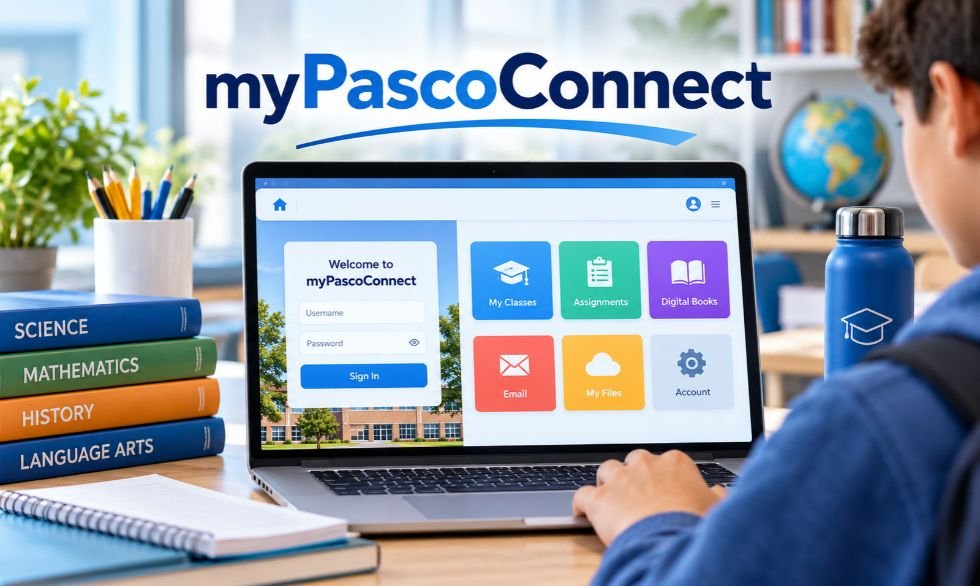
Students need many online tools for school. They use different apps for homework, lessons, books, and emails. Signing in to each app can take time. myPascoConnect makes this easier by putting school tools in one place.
The portal is used by Pasco County Schools in Florida. It lets students and teachers open learning apps with one school account. This guide covers login steps, main features, free Microsoft Office, parent access, password help, and the latest updates in 2026.
What Is myPascoConnect?
myPascoConnect is an online portal for students, teachers, and school staff in Pasco County Schools. It gives users access to school apps, digital books, email, and learning tools from one dashboard.
The portal uses ClassLink LaunchPad. ClassLink provides a system called Single Sign-On (SSO). This lets users sign in once and open many school apps without typing a new password each time.
Students can open Canvas, Microsoft 365, and other school resources. Teachers use the portal to reach their work tools. The apps shown on each dashboard depend on the user’s school account, grade, and access rights.
How to Log In to myPascoConnect?
Students can open the portal from home or school. They need their Student ID and school network password. Pasco County Schools recommends Google Chrome for its online learning tools.
Follow these steps to sign in:
- Open Google Chrome.
- Visit https://mypascoconnect.pasco.k12.fl.us/.
- Click Sign in to myPascoConnect.
- Enter your Student ID or lunch number.
- Type your school network password.
- Complete any password check shown on the screen.
- Choose the app you want to open.
New students may need to enter their password two more times during their first login. This helps confirm their account details. Teachers and staff use their own district login details. Students should never share their passwords with others.
Main Features
The portal gives students one place to open school apps. Its Single Sign-On feature saves time by reducing the need to enter different passwords. Some apps may still ask users to sign in during the first visit.
The dashboard shows apps based on each user’s school account. ClassLink also lets users arrange apps in folders when that option is available. Schools decide which apps students can open and which tools they can add.
Some key features include:
- Single Sign-On: Open many school apps with one login.
- App Dashboard: Find school tools in one place.
- App Library: Add approved apps when allowed.
- My Files: Access supported cloud storage accounts.
- Browser Extension: Help certain apps use saved login details.
- QuickCards: Sign in with a QR badge when provided by the school.
The ClassLink browser extension helps with apps that use saved passwords. QuickCards offer another login method for eligible students. Younger children can scan a school-issued QR badge instead of typing a long password.
How Students Use myPascoConnect for Learning?
Students use the portal to open online lessons and school resources. One important app is myLearning, the name Pasco County Schools uses for Canvas. Teachers use Canvas to share lessons, homework, quizzes, and course materials.
Students can open their classes, read lesson notes, and submit assignments. They can also check teacher feedback and complete online quizzes. Digital textbooks and reading apps may be available based on their grade and school.
School email is another useful tool. Students with access to Microsoft 365 can use Outlook for school messages. Canvas also has an Inbox for messages linked to classes. These tools help students contact teachers and check their school tasks.
How to Get Free Microsoft Office on myPascoConnect?
Pasco County Schools has offered free Microsoft Office access to eligible students through the Microsoft Student Advantage program. Students can use apps such as Word, Excel, and PowerPoint while their school license remains active.
Students can check for the desktop installation option by following these steps:
- Sign in to the school dashboard.
- Open Microsoft 365 or Office 365.
- Look for the Install Office Apps option.
- Download the available installer.
- Follow the steps shown on the computer.
- Sign in with your school Microsoft account.
Older district guides use this student email format: [StudentID]@student.pasco.k12.fl.us.
Students must use their assigned school login details to activate the software. The number of allowed devices depends on the current Microsoft license. If the download option is not shown, students can check whether the online Office apps are available.
How to Connect Google Drive and OneDrive to myPascoConnect?
ClassLink has a feature called My Files. It lets users access files from supported cloud storage services. These include Google Drive, Microsoft OneDrive, Dropbox, and Box. Schools decide which services students can connect.
To link a cloud storage account, follow these steps:
- Open the school dashboard.
- Find and open My Files.
- Select Manage Services.
- Choose an available storage service.
- Click the option to connect your account.
- Sign in and allow the required access.
Once connected, students can view supported files through My Files. They may also open documents in Google or Microsoft apps to edit them. The available actions depend on the account and school settings.
In September 2026, ClassLink added more controls for cloud storage connections. School administrators can manage which services users can connect. They can also limit connected accounts and set rules for approved email domains.
myPascoConnect Parent Login and myStudent Portal
Parents usually use myStudent rather than the student learning dashboard. The myStudent Parent Portal runs on Focus School Software. It gives families access to official school records and student information.
Parents can use the portal to check:
- Student grades and report cards
- Daily attendance records
- Class schedules
- Test information
- School records and updates
- Available student account details
Parents can find the Focus Parent Portal through the Pasco County Schools website. New users may need to create an account and link their children before viewing their records.
Some parents can also use a Canvas observer account. This gives them access to selected course details and assignments. Focus is used for official school records, while Canvas is used for classroom lessons and homework.
How to Reset a myPascoConnect Password?
Students who forget their passwords should contact their teacher or school office. School staff can help with account access and password problems. Parents may also find student login details through their myStudent Parent Portal account.
Older district instructions explain how parents can check student account information:
- Sign in to the myStudent Parent Portal.
- Open My Child.
- Choose Child Info.
- Look for Parent Information.
- Check whether student login details are available.
The exact menu may change with portal updates. If the password is not shown, parents should contact the school.
Passwords are case-sensitive. This means capital letters, small letters, numbers, and symbols must be entered correctly. Students should not use example passwords found on other websites. They must use the password assigned to their school account.
Mobile Access and Pasco ONE App
Students can open school resources on a phone or tablet through a supported browser. However, some online lessons may work better on a desktop computer or laptop. Certain course tools may not work well on small screens.
Pasco County Schools also offers an app called Pasco ONE. It gives families mobile access to district services and school information. The app is available for supported iOS and Android devices. It is separate from the ClassLink learning dashboard.
The Pasco ONE app also provides access to ONE Wallet, powered by Rycor. This service helps parents manage school meal accounts and payments. Families can use it to:
- Add money to meal accounts.
- View recent purchases.
- Move funds between student accounts.
- Set spending limits.
- Turn on low-balance alerts.
- Set up automatic payments.
Parents should use official district links when installing apps or signing into school accounts.
Login Problems and Fixes
Students may sometimes have trouble opening the portal. A wrong password, old browser data, or internet issue can stop a login. First, check the Student ID and password. Then reload the page and try again.
Some apps may open a second login screen. This can happen when an app needs its own password or the ClassLink browser extension. Students should check whether the required extension is installed and enabled.
Try these steps when the portal is not working:
- Wrong password: Check capital letters, numbers, and symbols.
- Page not loading: Check the internet connection and refresh the page.
- Browser error: Update Chrome or clear old browser data.
- App not opening: Check the ClassLink extension if that app needs it.
- Blank app screen: Allow pop-ups for trusted school websites when required.
- Missing app: Ask a teacher whether the app is assigned to your account.
- Locked account: Contact the school for password or account help.
Pasco eSchool recommends Chrome for its learning tools. Some programs may have issues in other browsers. If the problem continues, students should ask their school for technical support.
Is myPascoConnect Safe and Reliable?
myPascoConnect is an official online service used by Pasco County Schools. It uses ClassLink technology to manage access to learning apps. Students should sign in through official district websites and avoid unknown pages asking for school passwords.
ClassLink supports different ways to sign in. Some apps use secure account connections. Others use saved login details. Schools decide which apps and files users can access through their accounts.
Students can help keep their accounts safe by following these rules:
- Keep school passwords private.
- Sign out after using a shared computer.
- Do not save passwords on public devices.
- Avoid clicking unknown login links.
- Use school-approved apps and websites.
- Report strange login messages to school staff.
Like other online services, the portal can have technical problems. Users may lose access during internet issues or service outages. Students should contact their school if they cannot open important learning tools.
Benefits and Drawbacks
The portal makes it easier to reach school apps from one place. Students can open their lessons, textbooks, and other resources without searching for each website. Teachers can also direct students to the tools already shown on their dashboards.
Another benefit is access to cloud files and saved app logins. Students can open supported Microsoft and Google tools when their school allows them. QuickCards can also make signing in easier for younger children.
However, the portal has some limits.
Main benefits:
- One login for many connected school apps.
- Easy access to lessons and digital books.
- A dashboard with assigned learning tools.
- Cloud storage support.
- Microsoft 365 access for eligible users.
- QR-code login for students with QuickCards.
Main drawbacks:
- Some apps need a separate password during setup.
- Certain login features need a browser extension.
- Most online tasks require internet access.
- Some learning tools may not work well on phones.
- School account settings can limit available apps.
- Service problems can block access through the dashboard.
These limits depend on the device, connected app, and school settings.
myPascoConnect vs. Other School Login Portals
Schools use different systems to manage online apps and student accounts. ClassLink is one option. Other common services include Clever, Google Workspace for Education, and Microsoft Entra ID.
These platforms have different uses:
| Platform | Main purpose | Key feature |
|---|---|---|
| ClassLink LaunchPad | Open school apps | Single Sign-On and app dashboard |
| Clever | Access learning apps | School login and class roster tools |
| Google Workspace for Education | Schoolwork and file sharing | Google Docs, Drive, Gmail, and Classroom |
| Microsoft Entra ID | Manage user accounts | Identity checks and access controls |
ClassLink and Clever help students open school apps from one place. Google Workspace provides tools for writing, sharing files, and online classes. Microsoft Entra ID helps schools and other groups manage account access.
These services can work together. They are not always direct replacements for each other. Pasco County students should use the official login system assigned by their school district.
Latest Updates
Pasco County Schools made changes to its family payment services in 2026. The district moved from MySchoolBucks to ONE Wallet, powered by Rycor. Parents can access the service through Pasco ONE to manage school meal funds and payments.
ONE Wallet lets families add money, check purchases, move funds between children, and set spending limits. It also supports automatic payments and low-balance alerts. The district says meal account balances from the 2025–2026 school year were moved to the new system.
ClassLink also released updates to its software in 2026. In June, it improved My Files loading and some file actions. In September, it added more controls for cloud storage services and connected accounts.
On October 13, 2026, ClassLink announced further updates to My Files, app usage reports, and Roster Server tools. It also added an Insights feature that helps school leaders compare app use with student test results. These are ClassLink-wide updates, so the tools available to Pasco students depend on the district’s settings.
FAQs
1. What is myPascoConnect used for?
myPascoConnect lets Pasco County students and staff access Canvas, Microsoft 365, digital textbooks, and other school apps from one dashboard.
2. How do students log in to myPascoConnect?
Students open the official portal and enter their Student ID or lunch number and school network password.
3. Can parents access myPascoConnect?
Parents mainly use the myStudent Parent Portal to check their child’s grades, attendance, schedules, and school records.
4. What should I do if myPascoConnect is not working?
Check your login details, refresh the browser, try Google Chrome, or contact your school for technical help.
5. Can students download Microsoft Office for free through myPascoConnect?
Eligible students can access Microsoft 365 and install available Office apps using their school accounts.
MORE INTERESTING: Who Delivers Your Offer to the Seller Framework: Everything Explained
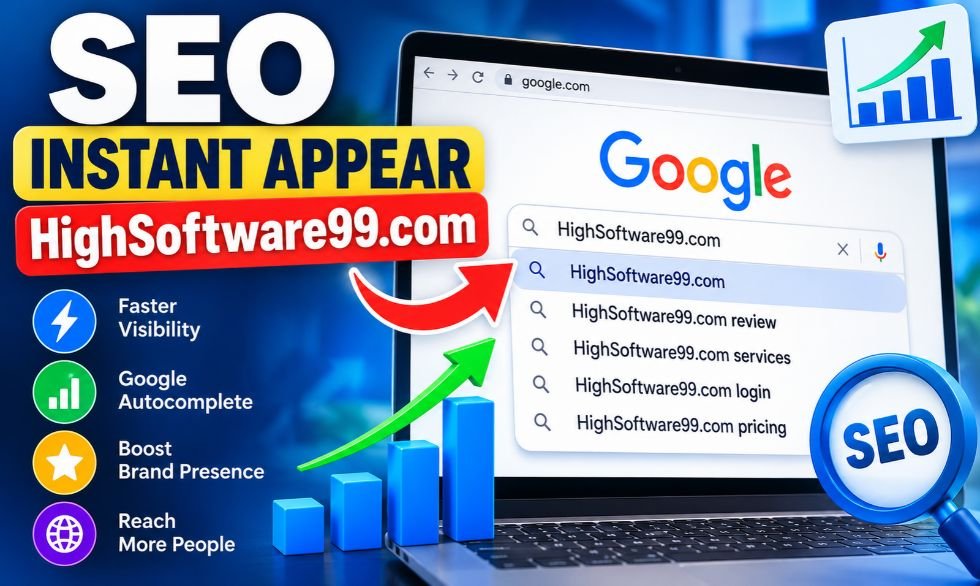
SEO Instant Appear HighSoftware99.com is a paid search marketing service linked to Google Autocomplete. The company claims it can help a brand appear in Google’s search suggestions within 3–12 hours. This service is aimed at businesses that want people to see their names while searching online.
Google Autocomplete is not the same as a top Google ranking. This article explains how the service works, its features, prices, benefits, risks, safety, and other options available in 2026.
What Is SEO Instant Appear HighSoftware99.com?
SEO Instant Appear HighSoftware99.com is a service that aims to show a brand or website name in Google Autocomplete. Autocomplete shows suggested searches when someone starts typing in Google. The company also calls this service Google Auto Complete or ATC.
For example, a business may want its name to appear when someone types “best SEO services.” The service aims to link that search phrase with the business name. People may then notice the brand before they finish their search.
HighSoftware99.com also advertises SEO, search marketing, content creation, brand strategy, social media management, and web design. These are separate from its Autocomplete service. Customers do not appear to need an app or special software to use it.
How Does SEO Instant Appear HighSoftware99.com Work?
The service starts with a keyword and a brand name or website address. Customers may also choose the country where they want their brand to appear. This matters because Google search suggestions can change by location and language.
The seller describes a process that includes these steps:
- Choose a keyword linked to your business.
- Give your brand name or website address.
- Select the country you want to target.
- Ask the provider to check the keyword.
- Agree on the price and campaign length.
- Start the campaign.
- Check Google Autocomplete for the target phrase.
HighSoftware99.com has not shared a full public guide to its technical method. Some outside articles mention bots and automated searches, but there is no reliable proof that this company uses them. Customers should ask how the service works before paying.
Key Features
The main feature is Google Autocomplete optimization. It aims to show a chosen brand or website name with a target search phrase. The goal is to appear in Google’s search suggestions, not to move a webpage higher in normal search results.
The service also offers keyword and country targeting. A business can select a market and check whether its brand appears there. HighSoftware99.com has shown examples for searches in the United States and India.
The company also advertises other marketing services:
- SEO and SEM: Help with search visibility and online marketing.
- Content creation: Content for websites and marketing.
- Brand strategy: Help with a company’s name and public image.
- Social media management: Support for business social accounts.
- Web design: Website design services.
Some outside articles also connect the company with schema markup, AI search, and fast indexing. However, these have not been confirmed as parts of its main Autocomplete service.
How Fast Does SEO Instant Appear HighSoftware99.com Work?
HighSoftware99.com claims its service can show a brand in Google Autocomplete within 3–12 hours. This is an advertised timeframe, not a result that every customer is sure to get.
The time may depend on the keyword, country, and search activity. Google suggestions can change based on location, language, trends, and past searches. A phrase seen by one user may not appear for another.
The 3–12-hour claim does not promise:
- First-page Google rankings.
- Fast indexing for every webpage.
- More website visitors.
- Higher sales or leads.
- Permanent Autocomplete results.
A public marketplace review reported that a target suggestion appeared within several hours. However, one test does not prove that every campaign will work at the same speed.
SEO Instant Appear HighSoftware99.com vs Google Rankings
Google Autocomplete and normal search rankings work in different ways. Autocomplete suggests searches while someone types. Organic rankings show where webpages appear after a search is made.
Google must first find and process a webpage before it can appear in organic results. This process includes discovery, crawling, indexing, and ranking.
| Search stage | What it means |
|---|---|
| Discovery | Google learns that a page exists. |
| Crawling | Googlebot visits the page. |
| Indexing | Google processes the page for its search index. |
| Organic ranking | Google chooses where a page may appear. |
| Autocomplete | Google suggests searches as someone types. |
A page can be indexed but still rank low. A brand may also appear in Autocomplete while its website is far down in normal search results.
This is why fast Autocomplete visibility does not mean instant first-page rankings. Google controls its search results, and no outside company can guarantee a top organic position.
Pricing and Plans
HighSoftware99.com does not appear to offer one fixed price for all Autocomplete campaigns. Seller information describes different rates based on keyword competition and target country.
The following prices were reported in the supplied research. They are not confirmed current rates for every customer.
| Keyword competition | Reported starting price |
|---|---|
| Low | Around $500 per day |
| Medium | Around $2,000 per day |
| Extreme | Around $5,000 per day |
| Some highly competitive markets | $7,000+ per day |
The total cost may depend on the keyword, country, and campaign length. The seller has also described a one-day paid test. Customers should check whether this option is still offered.
Seller information also mentions a refund if the agreed keyword and brand do not appear within one day, subject to the stated terms. USDT TRC20 has been listed as a payment method. Crypto payments can be hard to reverse, so buyers should confirm the price and refund rules before paying.
Are SEO Instant Appear HighSoftware99.com Results Permanent?
Google Autocomplete suggestions are not permanent. They can change as search trends, locations, and user activity change. A phrase that appears today may disappear later.
According to seller descriptions, the result usually stays visible during the paid campaign. Some phrases may remain for a short time after a longer campaign ends. However, this is not guaranteed.
A business may need to keep paying to maintain its target suggestion. Before starting, customers should ask how long the result is expected to last, what happens when the campaign ends, and whether more payments will be needed.
Is SEO Instant Appear HighSoftware99.com Safe and Legit?
HighSoftware99.com has a public website that advertises Google Autocomplete services. Its offer has also appeared in SEO marketplace discussions. One marketplace review reported that a target suggestion appeared during a test.
However, there is limited verified information about the business. The available research does not clearly confirm its founder, CEO, legal company name, or full registration details. The exact method used to produce Autocomplete results is also unclear.
Before paying, customers should:
- Check the company’s contact and business details.
- Ask for written prices and service terms.
- Read the payment and refund rules.
- Request proof of past results.
- Ask whether bots or automated searches are used.
- Avoid sharing passwords without a clear need.
- Check how customer data is stored and used.
Google has rules against unauthorized automated searches and machine-made search traffic. However, there is no reliable proof that HighSoftware99.com uses these methods. It would be wrong to claim that the company breaks Google’s rules without evidence.
Benefits
The main possible benefit is fast brand visibility in Google Autocomplete. A business name may appear while someone types a related search phrase. This gives users a chance to notice the brand before they search.
Keyword and country targeting may help businesses focus on the markets they want to reach. For example, a company selling services in the United States may target search phrases used by people in that country.
Possible benefits include:
- Fast Autocomplete visibility, based on the company’s claim.
- Brand exposure for chosen keywords.
- Targeting of selected countries.
- More chances for people to notice a business name.
- Possible use for short marketing campaigns.
- A reported one-day paid test.
These benefits are not guaranteed. Seeing a brand in Autocomplete does not mean someone will visit its website, contact the company, or buy something.
Drawbacks
One major drawback is the reported price. Campaigns may cost hundreds or thousands of dollars each day. This can be too expensive for small businesses, especially if they need to keep paying.
Another concern is the lack of clear information about the technical method. The company has not fully explained how it produces Autocomplete results. There is also limited public proof of long-term results.
Other drawbacks include:
- No guaranteed first-page rankings.
- No promise of more organic traffic.
- Results may disappear after a campaign ends.
- Continued visibility may need more spending.
- Suggestions can change by country and user.
- First position is not always guaranteed.
- Limited public company information.
- No guaranteed sales or leads.
Autocomplete visibility and long-term SEO growth are different goals. Customers should judge the service by the results it promises, not by benefits it has not confirmed.
How to Check SEO Instant Appear HighSoftware99.com Results?
Before starting a campaign, write down the target keyword, brand name, country, and date. Search for the phrase on Google to see whether the brand already appears. This gives you a starting point.
After the campaign starts, check the same phrase again. Use more than one browser or device. Make sure the search country and language match the campaign settings. Record when the suggestion appears and how long it stays visible.
Track these details:
- Date the suggestion first appears.
- Its place in the suggestion list.
- Country where it appears.
- How long it stays visible.
- Changes in branded searches.
- Website visits and search clicks.
- Leads, enquiries, and sales.
Google Search Console can show search impressions and clicks. Website analytics can help track visits and sales. These results should be checked on their own because an Autocomplete screenshot does not prove that the campaign brought more customers.
Best Alternatives
The best alternative depends on your goal. Some businesses want faster indexing, while others want more traffic, better rankings, or paid search exposure.
Several tools and SEO methods can help with these needs.
| Alternative | Main use | Best for |
|---|---|---|
| Google Search Console | Indexing checks and search data | Website owners |
| Google Ads | Paid search ads | Fast paid exposure |
| Google Trends | Search interest research | Keyword trends |
| Semrush | Keyword research and site audits | SEO planning |
| Ahrefs | Backlink and competitor research | Organic SEO research |
| Traditional SEO | Content and website improvements | Long-term traffic |
| DIY SEO | Basic website fixes | Small budgets |
Google Search Console is free. It helps website owners check indexing, submit sitemaps, and view search data. It does not guarantee instant indexing or Autocomplete placement.
Google Ads offers paid ads in eligible search results. Semrush and Ahrefs provide tools for keyword research, site checks, and competitor research. Traditional SEO focuses on useful content, technical fixes, internal links, and trusted links from other websites.
Is SEO Instant Appear HighSoftware99.com Worth Using?
SEO Instant Appear HighSoftware99.com may be worth looking at for businesses that want their brand to appear in Google Autocomplete. The company advertises results within hours, but the reported daily prices can be high. There is also limited public proof of long-term results.
Before buying, customers should confirm the keyword, target country, campaign length, price, refund terms, and expected result. They should also ask how the service works and request proof from past campaigns. A short test may show whether the agreed suggestion appears, but it cannot prove lasting value.
For businesses that want better organic rankings and steady search traffic, traditional SEO is a better main option. HighSoftware99.com’s Autocomplete service has a different goal.
Frequently Asked Questions
What is SEO Instant Appear HighSoftware99.com?
It is a paid service that aims to show a brand or website name in Google Autocomplete suggestions for selected keywords.
How fast does HighSoftware99.com claim to work?
The company claims Autocomplete results can appear within 3–12 hours, but this does not guarantee higher organic Google rankings.
How much does SEO Instant Appear HighSoftware99.com cost?
Seller-reported prices start around $500 per day and may exceed $7,000 per day for highly competitive keywords.
Is SEO Instant Appear HighSoftware99.com safe and legit?
It advertises a real Autocomplete service, but its methods and business details need further checks before payment.
Are HighSoftware99.com Autocomplete results permanent?
No permanent placement is guaranteed, and suggestions may disappear when a campaign ends or Google changes its predictions.
MORE INTERESTING: What Is a Binder in Cooking?

MyFastBroker.com Review: Broker Types, Features, and Alternatives

Who Is Dominick Wright? Meet Eazy-E’s Son and Actor

Meet Neil Jason Wharton: The Rock Singer Following His Father’s Path

Jason Lawson: The Story of Hayley Mills’ Son

Nina Weiss: All You Need to Know About Manuel Neuer’s Ex-Wife

Sandra Davenport: The Untold Story of Jim Belushi’s First Marriage
-
 Celebrity3 months ago
Jason Lawson: The Story of Hayley Mills’ Son
-
 Celebrity3 months ago
Nina Weiss: All You Need to Know About Manuel Neuer’s Ex-Wife
-
 Celebrity3 months ago
Sandra Davenport: The Untold Story of Jim Belushi’s First Marriage
-

 News2 months ago
Meet Lisa Ann Mudd, Sydney Sweeney’s Mother and Former Attorney
-

 News2 months ago
Who Is Rebecca Dyer? Meet David Foster’s Ex-Wife
-

 Celebrity3 months ago
Jack Scarborough: Everything About Joe Scarborough’s Son
-

 Biographies1 month ago
Who is Thomas Earle? All About Alix Earle’s Father
-

 Celebrity3 months ago
Debra Rodman: Inside the Life of Dennis Rodman’s Powerful Sister